
How to Manage Your Contacts in Happ (Your Built-In CRM)

Every person you work with gets a living profile in Happ: business details, notes, every contract, every payment. Here's how to run your Contacts like the CRM it is.
Duration: 10 minutes
Updated: 20/07/2026
How to Manage Your Contacts in Happ (Your Built-In CRM)

Tools

  • Happ account (app.happ.network)
  • The Contacts tab in the bottom navigation

Ingredients

  • At least one Collaborator you work with
  • Their business details: email, phone, address, registration number if invoicing formally
  • Sixty seconds after each project to keep profiles current

At a glance

  1. Open Contacts and find anyone fast The Contacts tab in the bottom navigation is your directory. Every row shows a name and a role.
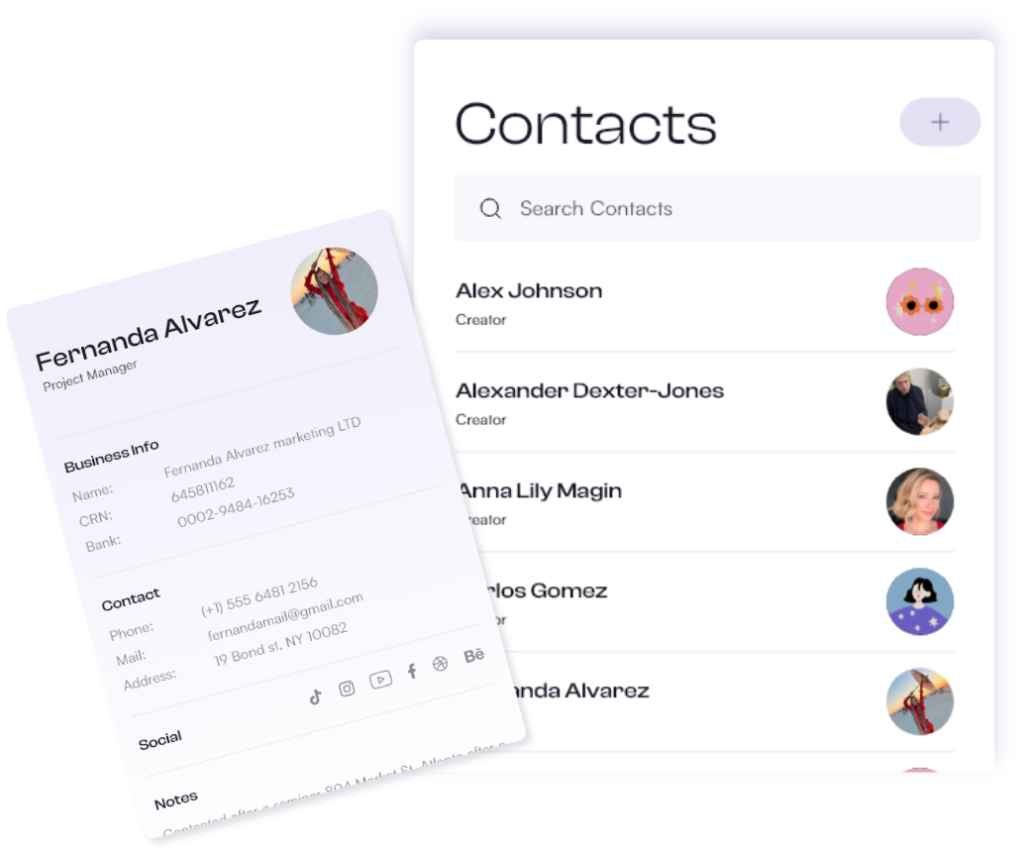
    Open the Contacts tab. Each row shows a name and a role · a mix of Creators and specific professions. Search works across the directory, so a growing list stays fast to navigate: type a few letters and you're on the profile.
  2. Fill in Business Info once Every contract and invoice for this Collaborator starts from this data. Clean in, clean out.
    On the contact profile, Business Info holds name, registration number, phone, mail, and address · all editable. Fill it in once, at the start of the relationship, and every document that follows draws from it. The registration number matters more than it looks: for business clients, an invoice without their registration details often bounces back from their bookkeeper. One minute here prevents that email thread.
  3. Use Notes for everything you'd otherwise keep in your head Rate history, preferences, how they like to communicate. The context that makes the next project smoother than the last.
    The Notes field is free-form. Use it for:
    • Rate history · what you charged them last time and why
    • Working preferences · approval flow, who signs, who pays
    • Context · how you met, who referred them, what they're planning next
    Six months from now, the difference between "remind me who you are" and "great to hear from you again · how did the spring campaign land?" is three lines in Notes.
  4. Read the Contracts and Payments tabs Two tabs on every profile hold the whole working history: every agreement, every dollar.
    The Contracts tab lists every agreement with this person, in one place. The Payments tab is a per-contact money ledger · every payment in, every refund out, with outgoing withdrawals shown as negative lines. When you need to know exactly where you stand with someone · before quoting the next project, before a difficult conversation about an overdue milestone · this ledger is the answer, without a spreadsheet on the side.
  5. Work from the quick-action sheet The "+" on a contact profile opens the actions you actually use mid-relationship.
    Tap the "+" on any contact profile for: Request payment, Send invoice/receipt, Make Refund, and New Contract · plus Edit, Delete, and Share. Starting a new deal with a returning Collaborator takes two taps, and their details are already in place. This is where the CRM stops being a filing cabinet and starts being a workflow.
  6. Build the sixty-second habit After every project wraps, one minute on the profile pays for itself on the next booking.
    When a project closes: update Notes, confirm Business Info, glance at the ledger. Sixty seconds. Next time they come back · and on Happ, the goal is that they do · you start from full context instead of a search through old email threads. Repeat Collaborators are the best economics in freelance work; a current profile is how you treat them like it.

Frequently Asked Questions

How do I start a new contract with an existing contact?

Open their profile, tap the "+" quick-action sheet, and choose New Contract. The contract wizard opens with them set as the Collaborator, and their Business Info flows into the document automatically.

What shows in a contact's Payments tab?

A per-contact money ledger: every payment received on your contracts with them, refunds you've made, and outgoing withdrawals as negative lines. It's the running truth of the financial relationship.

Why do withdrawals show as negative lines?

The ledger tracks money movement in both directions so the record stays complete. Payments in are positive; money leaving your balance · refunds and withdrawals · shows as negative. The result reads like a bank statement for the relationship.

Can I edit or remove a contact?

Yes. Edit, Delete, and Share all live in the "+" quick-action sheet on the profile. Business Info and Notes are editable at any time.

How Happ keeps your relationships organized

A freelance business runs on relationships, and relationships run on memory. Who paid on time. What you agreed last spring. Which email the invoice goes to. Happ keeps all of it in Contacts · a searchable directory where every Collaborator has a living profile.


  • Business Info, Notes, and full contract and payment history on every profile.
  • A per-contact money ledger that shows exactly where you stand with anyone.
  • Quick actions · Request payment, Send invoice/receipt, Make Refund, New Contract · two taps from any profile.